
This User Guide will show you how to use all of TroopWebHost's capabilities.
Click on the << Back and Next >> links at the top (and bottom) of each page to browse in a logical order.
On a touch screen device, like a cell phone or tablet, you can swipe right or left to do the same thing.
Click the menu icon  in the upper left corner to go directly to a different chapter or page.
Click the search icon  in the top right corner of the page to open up the search window.
Use this to search for pages that contain a specific key word. Avoid using common words like "the" or "and" in your search.
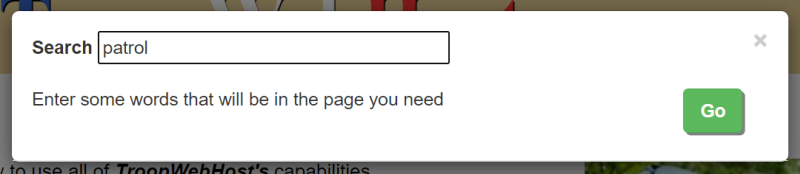
For example, if you want to find out how to keep track of patrols, just enter "patrol" into the search box and click on Go, as shown below.
in the top right corner of the page to open up the search window.
Use this to search for pages that contain a specific key word. Avoid using common words like "the" or "and" in your search.
For example, if you want to find out how to keep track of patrols, just enter "patrol" into the search box and click on Go, as shown below.
Use the Print This Chapter link at the bottom of the page to view the current chapter in a new window,
without the heading or menu, and invoke your browser's print function.